SSL certificate monitoring for Claude and ChatGPT
47DayCerts exposes its certificate tools to AI assistants through an open MCP server. Instead of opening a dashboard, you can ask your assistant which certificates are expiring, add a domain to monitoring, or check a host's live certificate. The assistant reads the same real-time data the website uses.
Connection URL
Use this URL in every setup
https://47daycerts.com/mcpThe connection URL is the same for Claude, ChatGPT, and Claude Code.
Setup
Claude
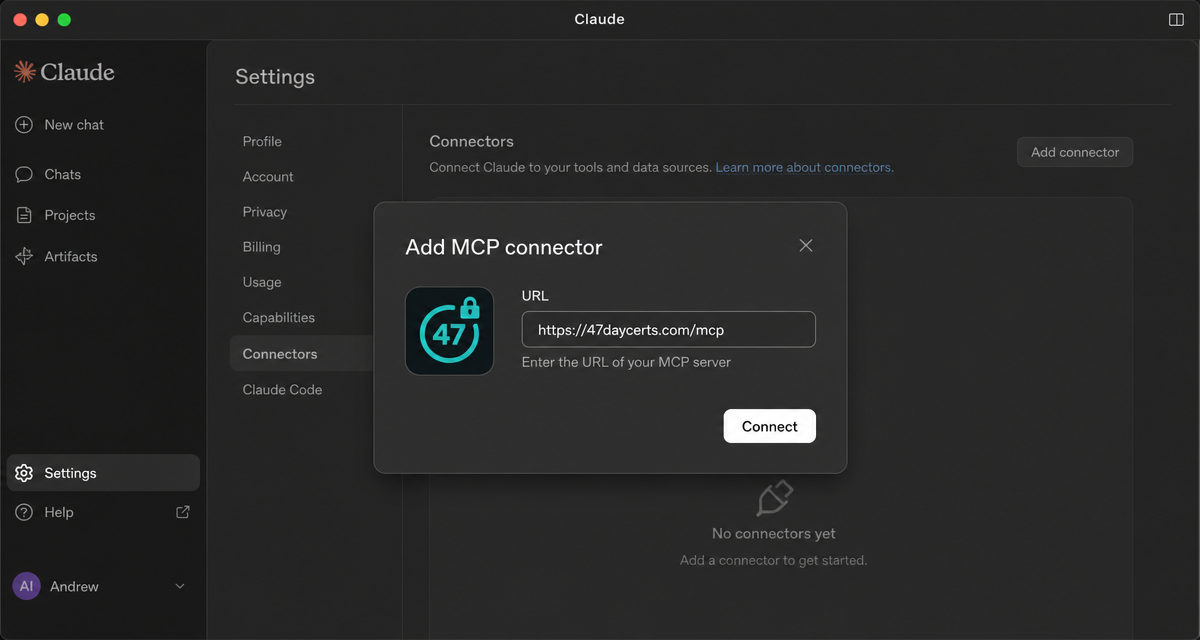
- Open Claude and go to Settings → Connectors.
- Choose Add connector and paste .
https://47daycerts.com/mcp - Sign in with your 47DayCerts account and approve the connection.
- Ask Claude about your certificates.
Claude Code
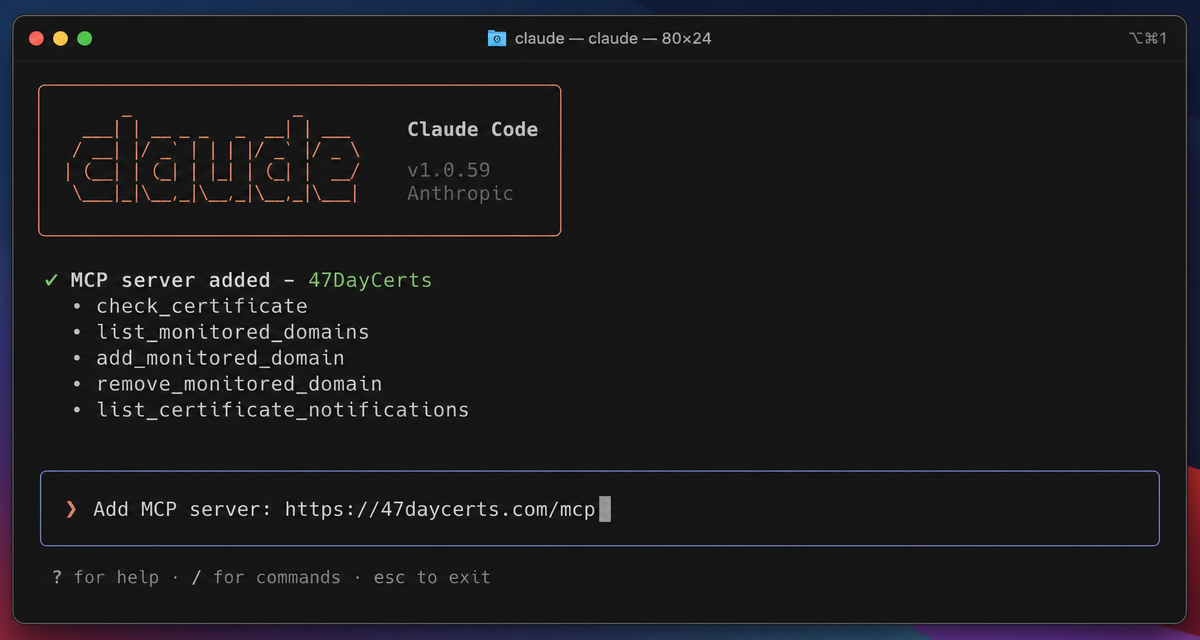
- In Claude Code, run /mcp or open the MCP settings for your project.
- Add a server and paste .
https://47daycerts.com/mcp - Sign in with your 47DayCerts account in the browser prompt and approve access.
- Use natural-language prompts in the Claude Code chat to check certificates.
ChatGPT
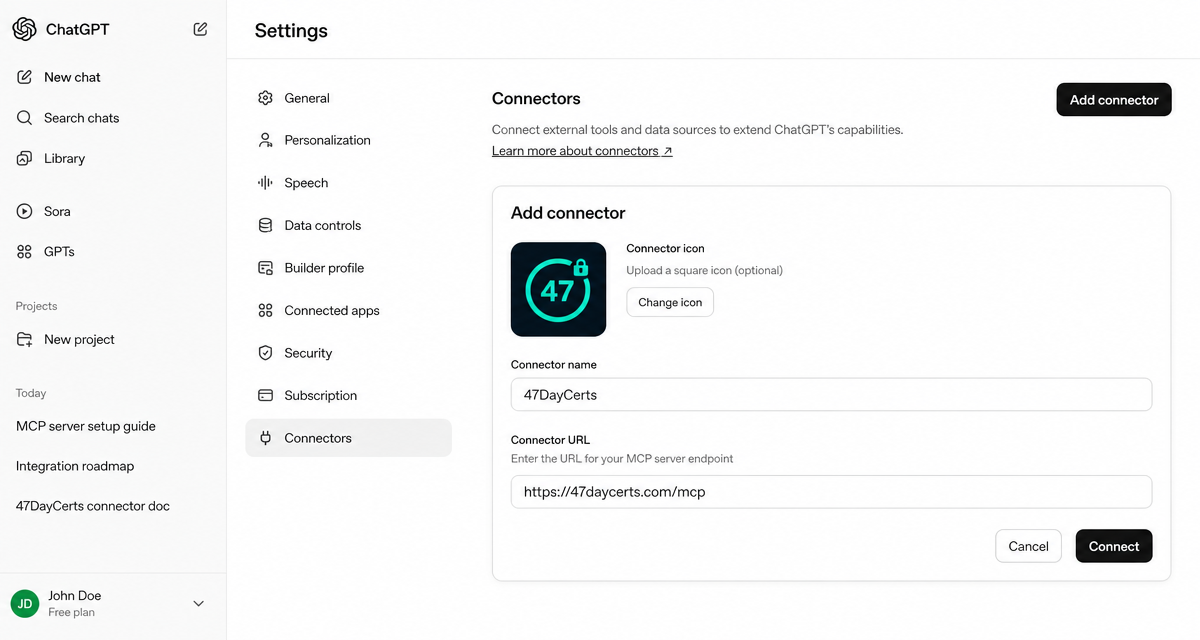
- Open ChatGPT and go to Settings → Connectors (or the MCP section in your workspace).
- Add a connector and paste .
https://47daycerts.com/mcp - Sign in with your 47DayCerts account and approve the connection.
- Ask ChatGPT about expiring certificates or ask it to add domains to monitoring.
What you can ask
47DayCerts provides five tools. Each one maps to something you can ask in natural language.
Check certificate
check_certificateReads the live SSL/TLS certificate for any public domain and reports issuer, validity dates, and automation signals.
Example: "What certificates are live for api.example.com?"
List monitored domains
list_monitored_domainsReturns the domains on your watch list, their latest scores, and how many days remain until expiry.
Example: "Which domains am I currently monitoring?"
Add monitored domain
add_monitored_domainAdds a domain to your monitoring list, subject to your plan's domain limit.
Example: "Add shop.example.com to my monitoring."
Remove monitored domain
remove_monitored_domainRemoves a domain from your monitoring list and stops expiry alerts for it.
Example: "Remove old.example.com from my watch list."
List notifications
list_certificate_notificationsShows recent expiry alerts and grade-change notifications for your monitored domains.
Example: "Which of my certificates expire in the next 30 days?"
Troubleshooting
Changes to tools require re-adding the connector
After the app's tools change, an existing MCP connector cannot be updated in place. If you see stale tool names or missing features, remove the connector in your assistant's settings and add it again using the same URL above. You will not need to sign in again if your session is still active.
The connector signs in as a specific account
When you approve the connector, it is tied to the 47DayCerts account you signed in with. The assistant sees only that account's monitored domains and plan limits. If you want to manage a different set of domains, sign in with the right account or remove and re-add the connector.
Questions
Embed the countdown
Add the 47DayCerts certificate countdown to your status page, internal wiki, or documentation.
Get the countdown badgeReady to connect?
Copy the URL above and add it to your assistant. Then ask a question like "Which of my certificates expire in the next 30 days?"